
How to Connect the REEKON T1M Tape Measure to FSS Window Pro
A Complete Step-by-Step Guide
If you've recently purchased a REEKON T1M Digital Tape Measure and want to use it with FSS Window Pro, you're only a few minutes away from a faster and more accurate measuring workflow.
When configured correctly, the REEKON T1M sends measurements directly into FSS Window Pro using Bluetooth. This eliminates manual typing, reduces measurement errors, and speeds up every field measurement.
In this guide, we'll walk through the complete setup process exactly as recommended.
Estimated Setup Time: 2–3 Minutes
Step 1 – Remove the Yellow Shipping Tool
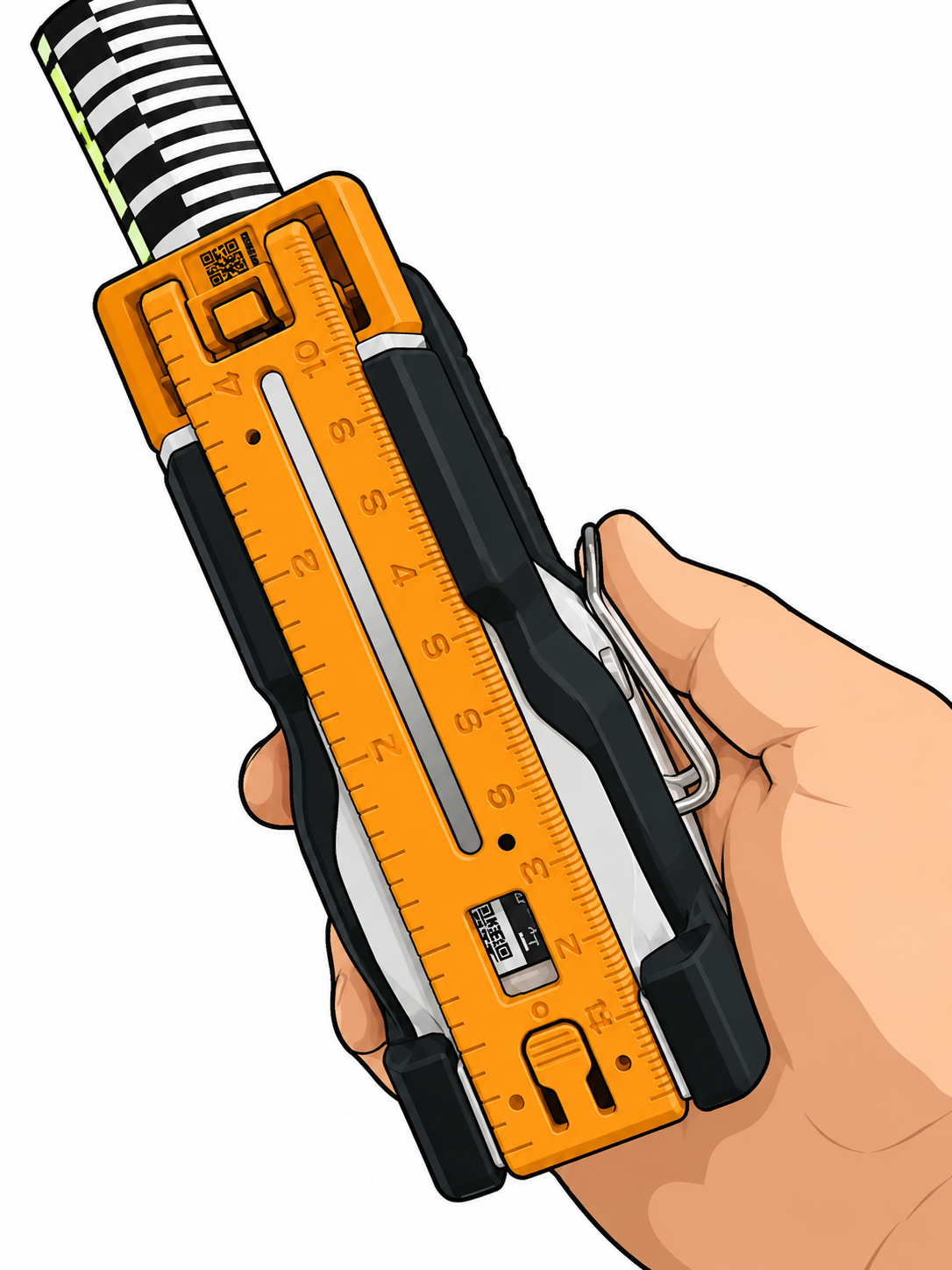
Before powering on your REEKON T1M, remove the yellow plastic shipping tool from the bottom of the device.
Simply press the small plastic detent tab inward and slide the yellow insert completely out.
Checklist
Remove the yellow shipping tool
Press the detent tab
Slide the insert completely out
Removing this shipping insert prepares the tape measure for normal operation.
Step 2 – Locate Your Device Name
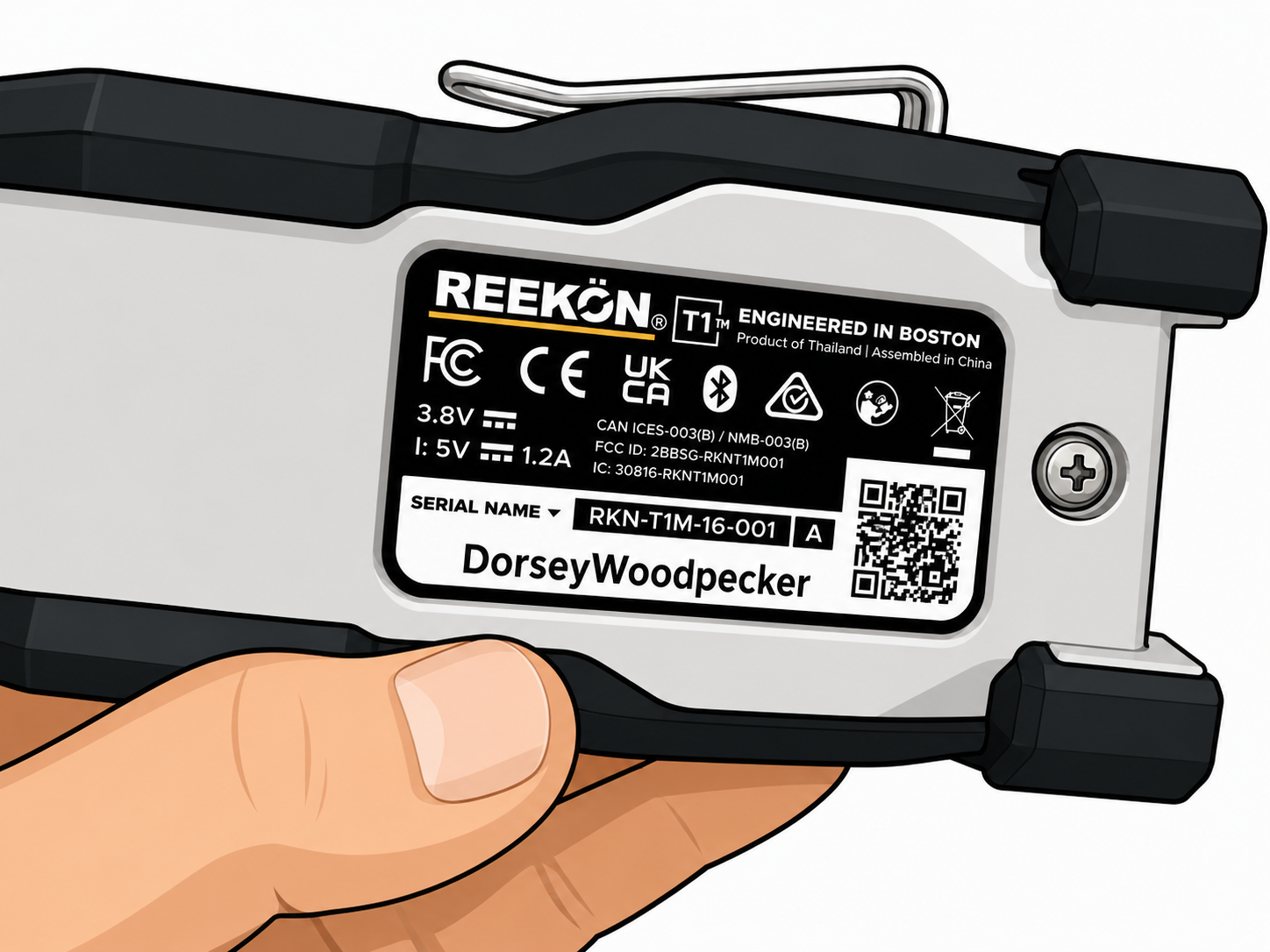
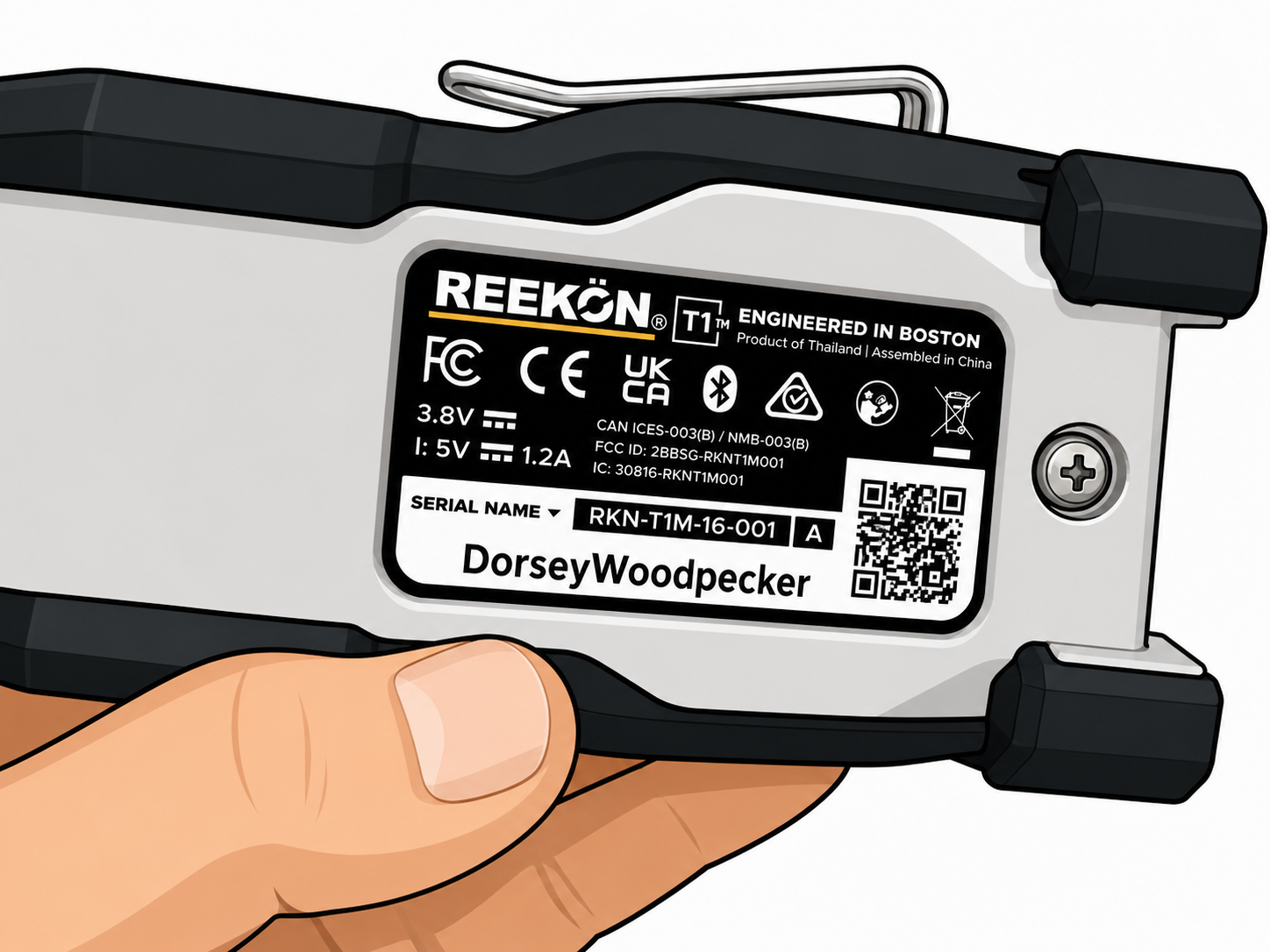
Turn the REEKON T1M over and locate the product label on the bottom of the device.
Write down—or remember—the Bluetooth device name. You'll need this later when pairing the tape measure with your phone or tablet.
Checklist
Locate the device label
Note the Bluetooth device name
Keep it handy for pairing
Step 3 – Learn the Device Buttons
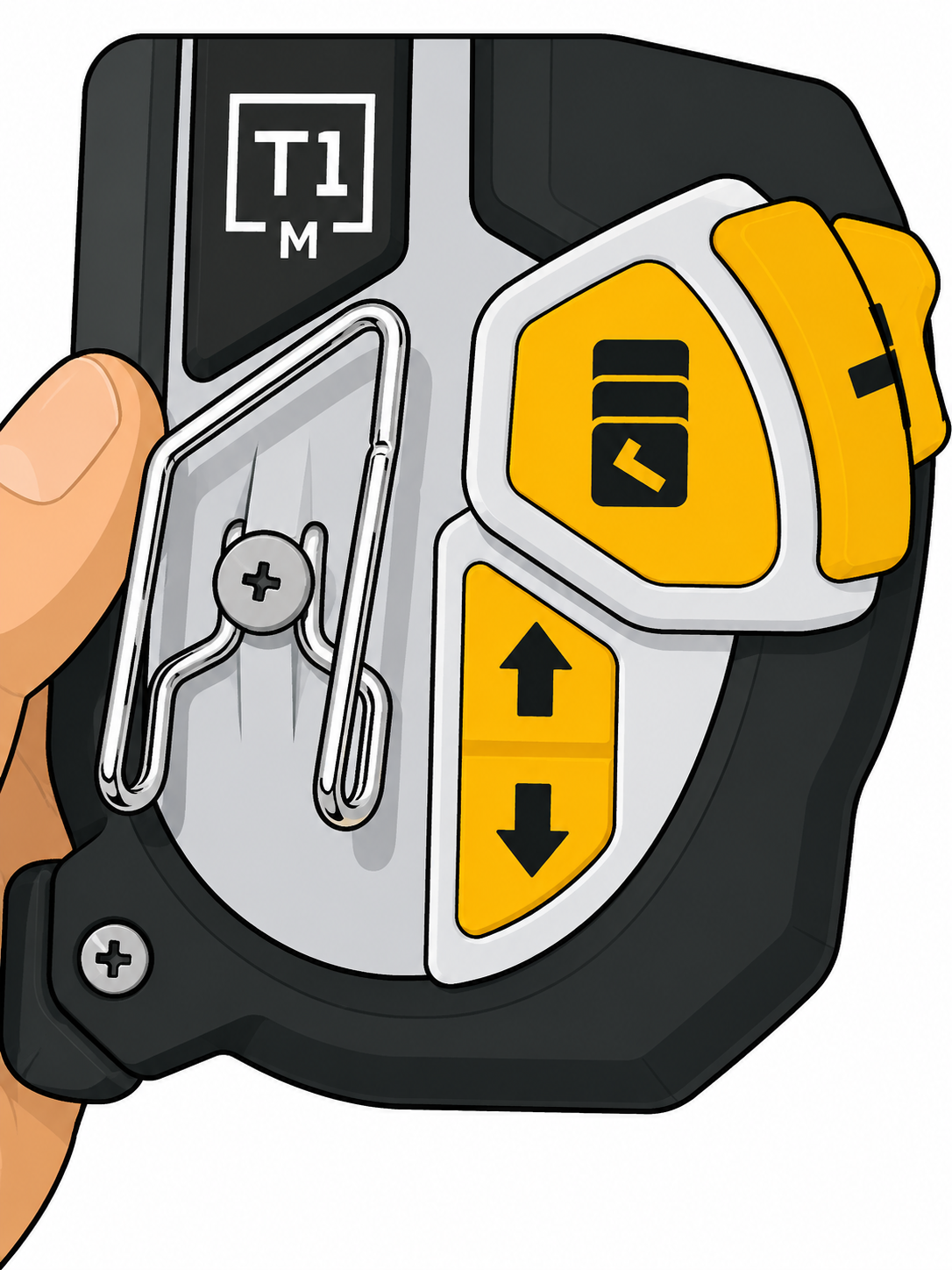
Before changing any settings, familiarize yourself with the controls.
During setup you'll primarily use:
Menu/Select button
Up Arrow
Down Arrow
Trigger button
Knowing these controls makes navigating the menu much easier.
Step 4 – Open the Settings Menu
Press the Menu button once.
The first screen is not the Bluetooth settings menu. Use the Up and Down arrows until you reach Menu, then press Menu/Select to enter.
Checklist
Press Menu
Scroll to Menu
Press Menu/Select
You are now inside the main settings menu.
Step 5 – Select BT Mode
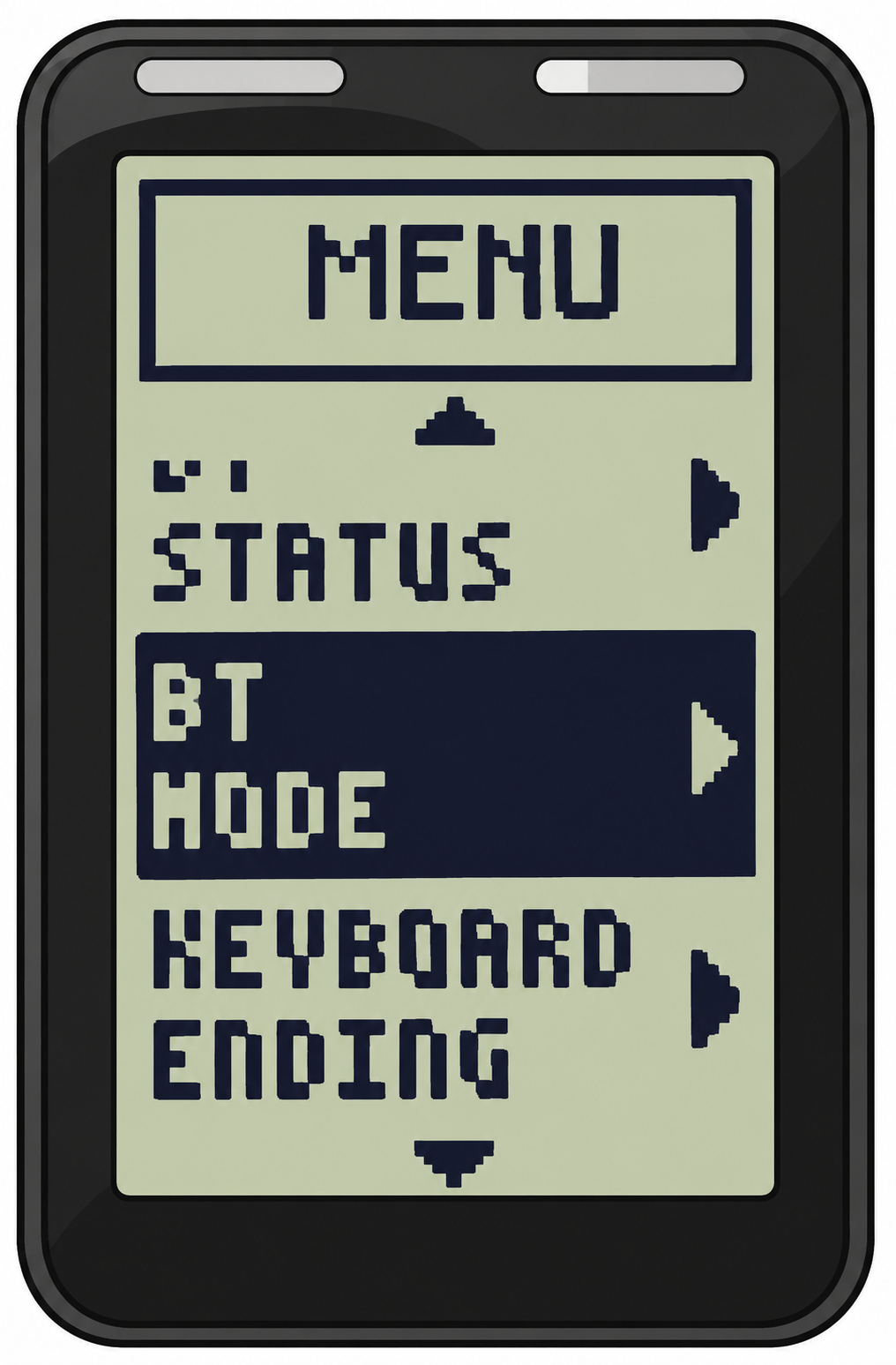
Inside the Menu, scroll until you find BT Mode (Bluetooth Mode).
Open this setting by pressing Menu/Select.
This is where you'll configure how the tape measure communicates with your mobile device.
Checklist
Open Menu
Highlight BT Mode
Press Menu/Select
Step 6 – Set BT Mode to Keyboard
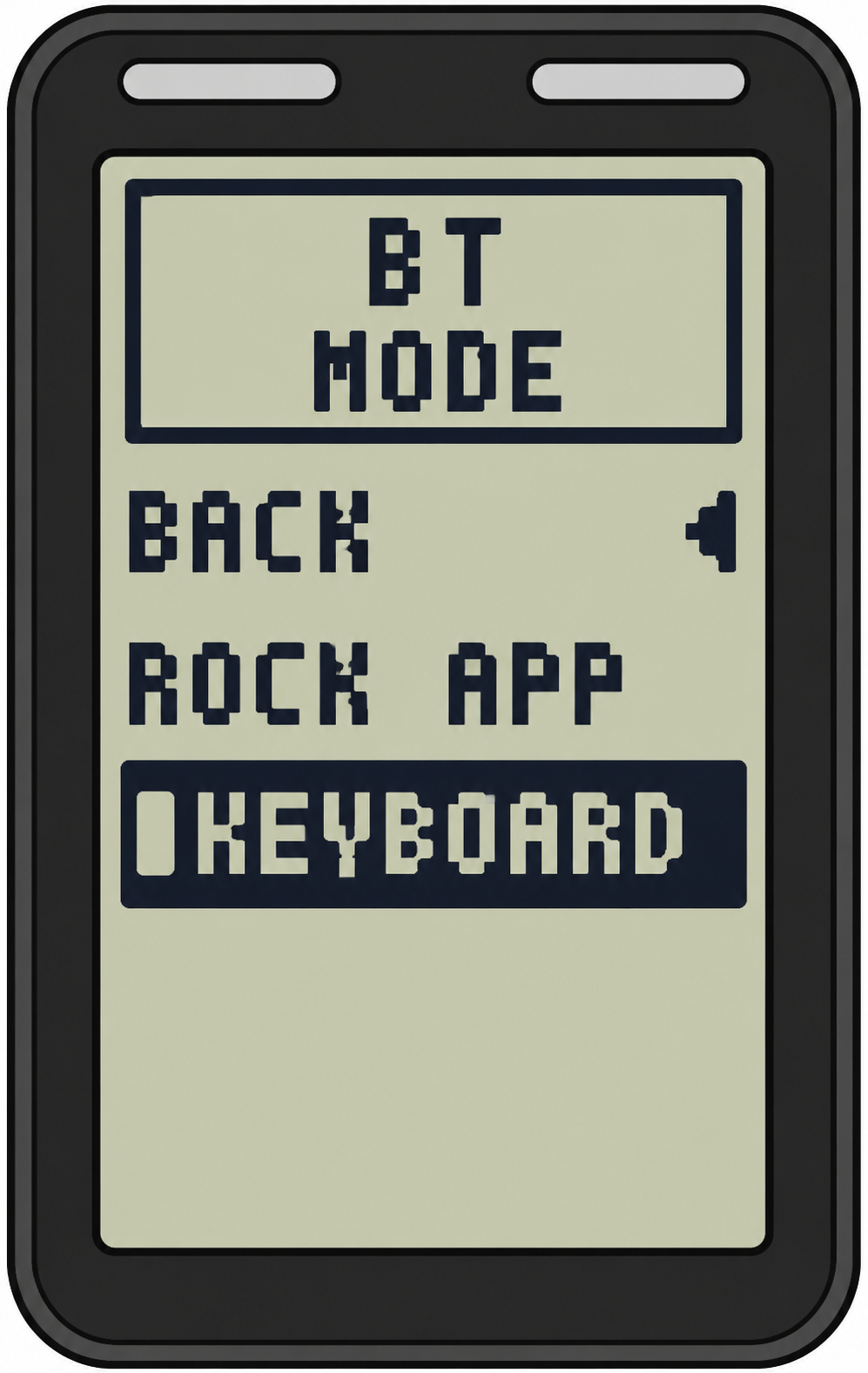
Inside BT Mode, select Keyboard.
Keyboard Mode allows the REEKON T1M to send measurements directly into FSS Window Pro exactly like keyboard input.
Checklist
Select Keyboard
Confirm Keyboard Mode
Return to the Menu
This is one of the most important settings for proper integration.
Step 7 – Open Keyboard Ending
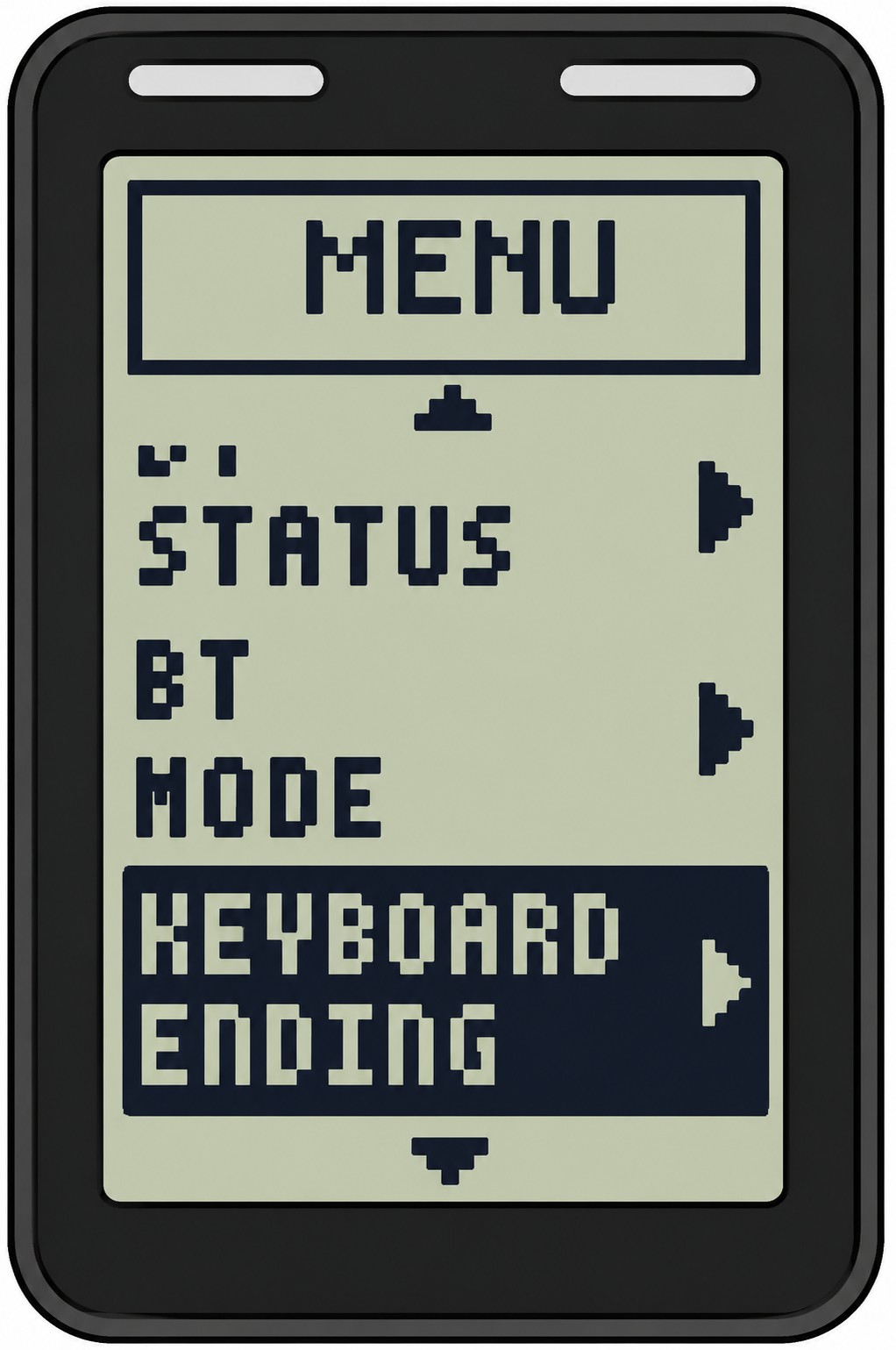
Back in the Menu, scroll down to Keyboard Ending.
Press Menu/Select to open the setting.
Checklist
Return to Menu
Highlight Keyboard Ending
Press Menu/Select
Step 8 – Set Keyboard Ending to TAB
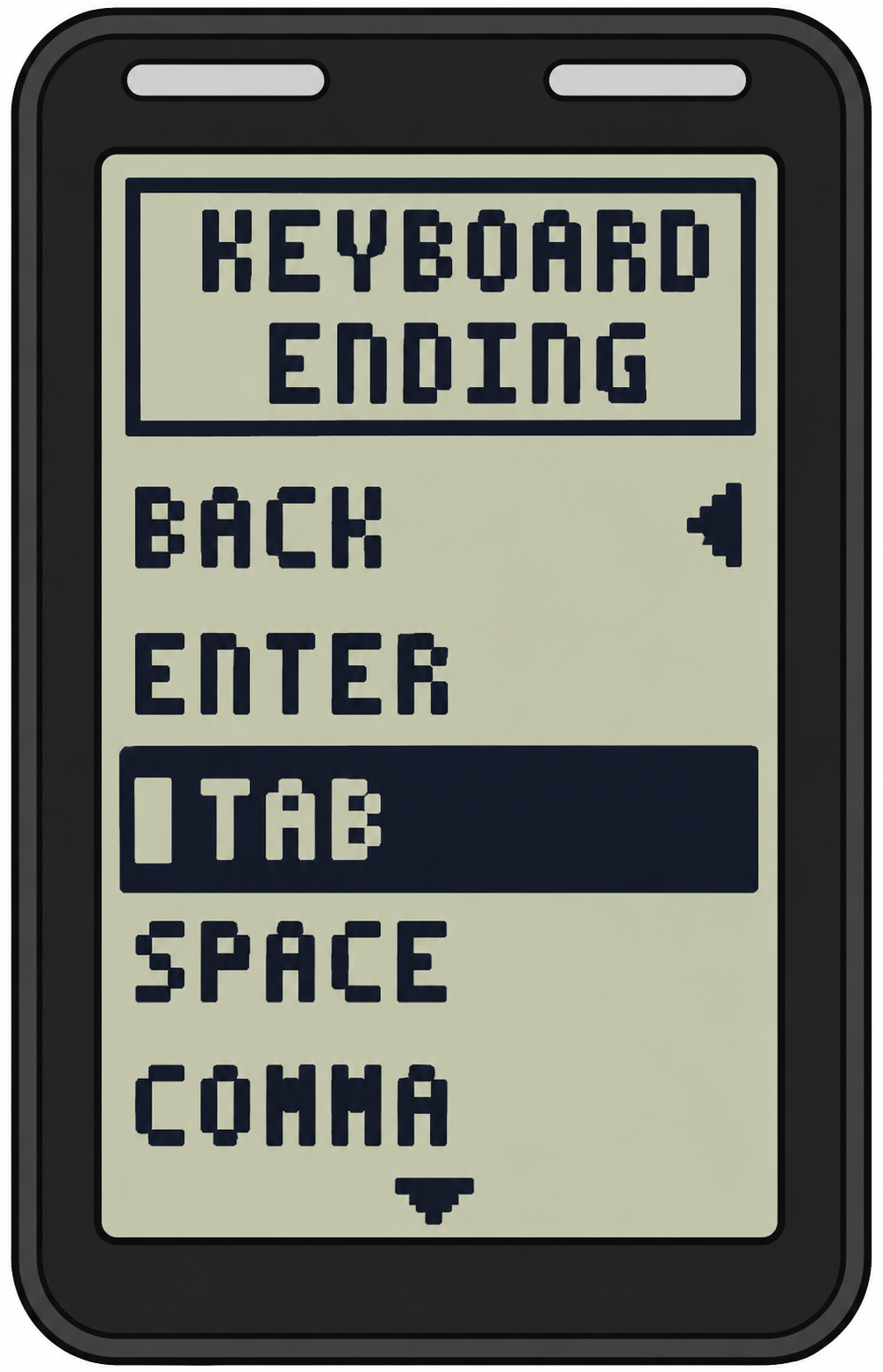
Inside Keyboard Ending, choose TAB.
Using TAB allows FSS Window Pro to automatically move to the next measurement field after each measurement is sent, creating a much faster workflow.
Checklist
Select TAB
Confirm TAB
Return to Menu
Step 9 – Open Units
Return to the Menu and locate Units.
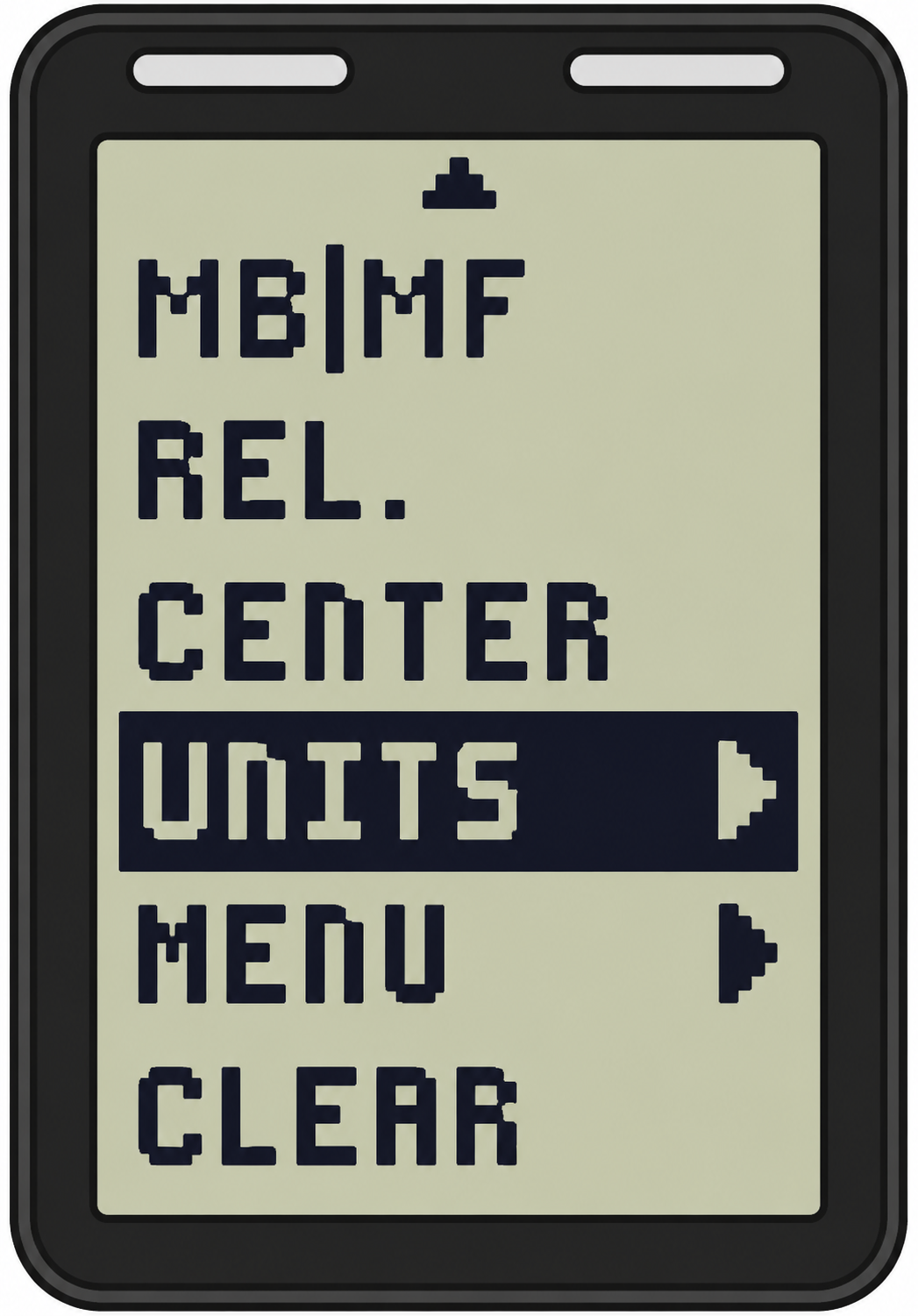
This setting determines the measurement format that the REEKON T1M sends to FSS Window Pro.
Checklist
Highlight Units
Press Menu/Select
Browse available unit options
Step 10 – Set Units to INCH .XX
Choose INCH .XX.
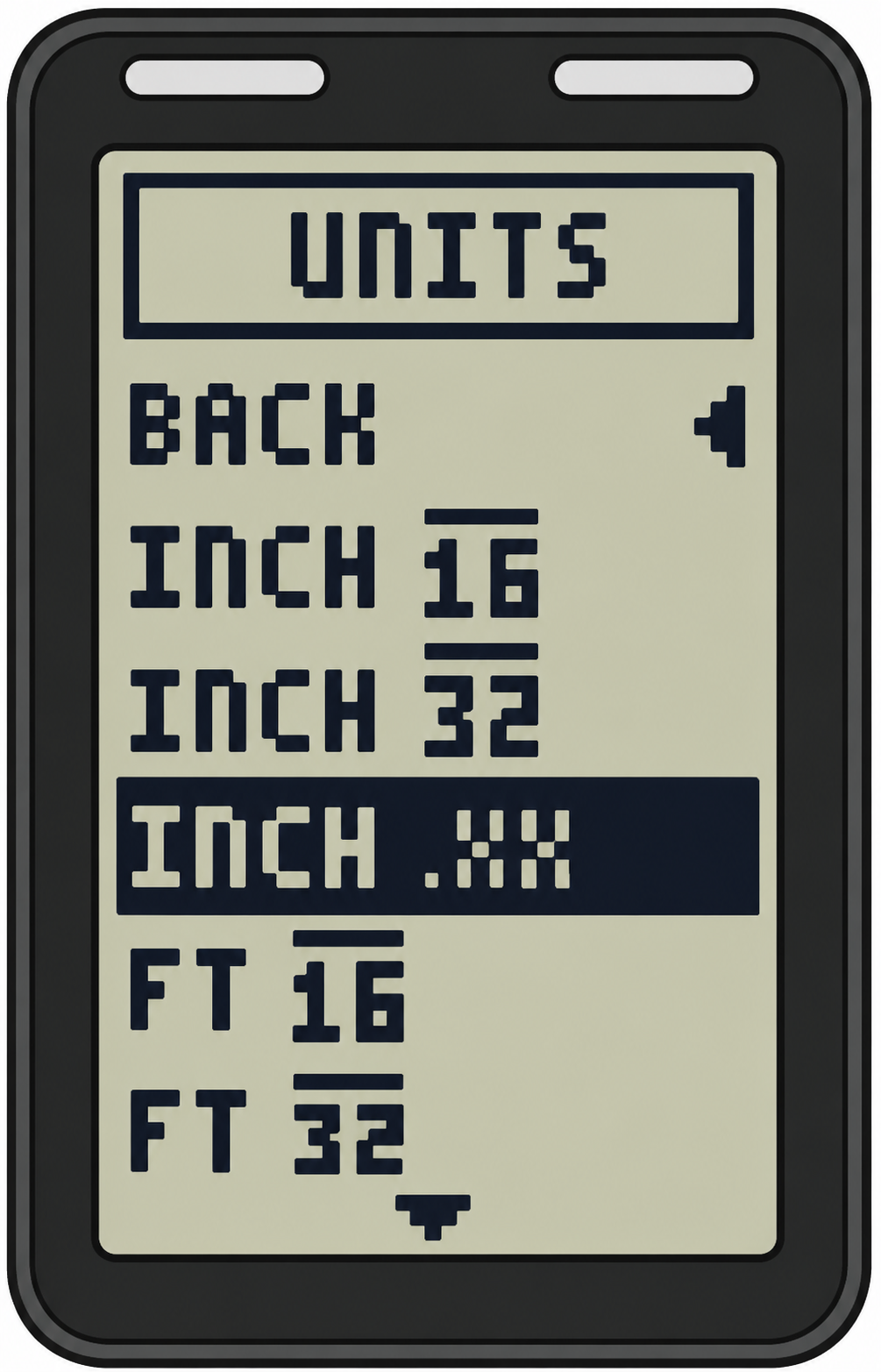
This sends raw decimal measurements instead of rounded fractions. FSS Window Pro then applies its own measurement processing and rounding logic for consistent reporting.
Checklist
Select INCH .XX
Confirm decimal mode
Return to Menu
Step 11 – Pair Your Phone or Tablet
Open the Bluetooth settings on your mobile device.
Search for nearby Bluetooth devices and select the REEKON T1M using the device name you noted earlier.
Once connected, verify the device shows as Connected.
Checklist
Open Bluetooth settings
Search for devices
Select your T1M
Confirm Connected
Step 12 – Test Inside FSS Window Pro
Open FSS Window Pro and tap inside any measurement field.
Extend the tape and press the trigger on the REEKON T1M.
If everything is configured correctly:
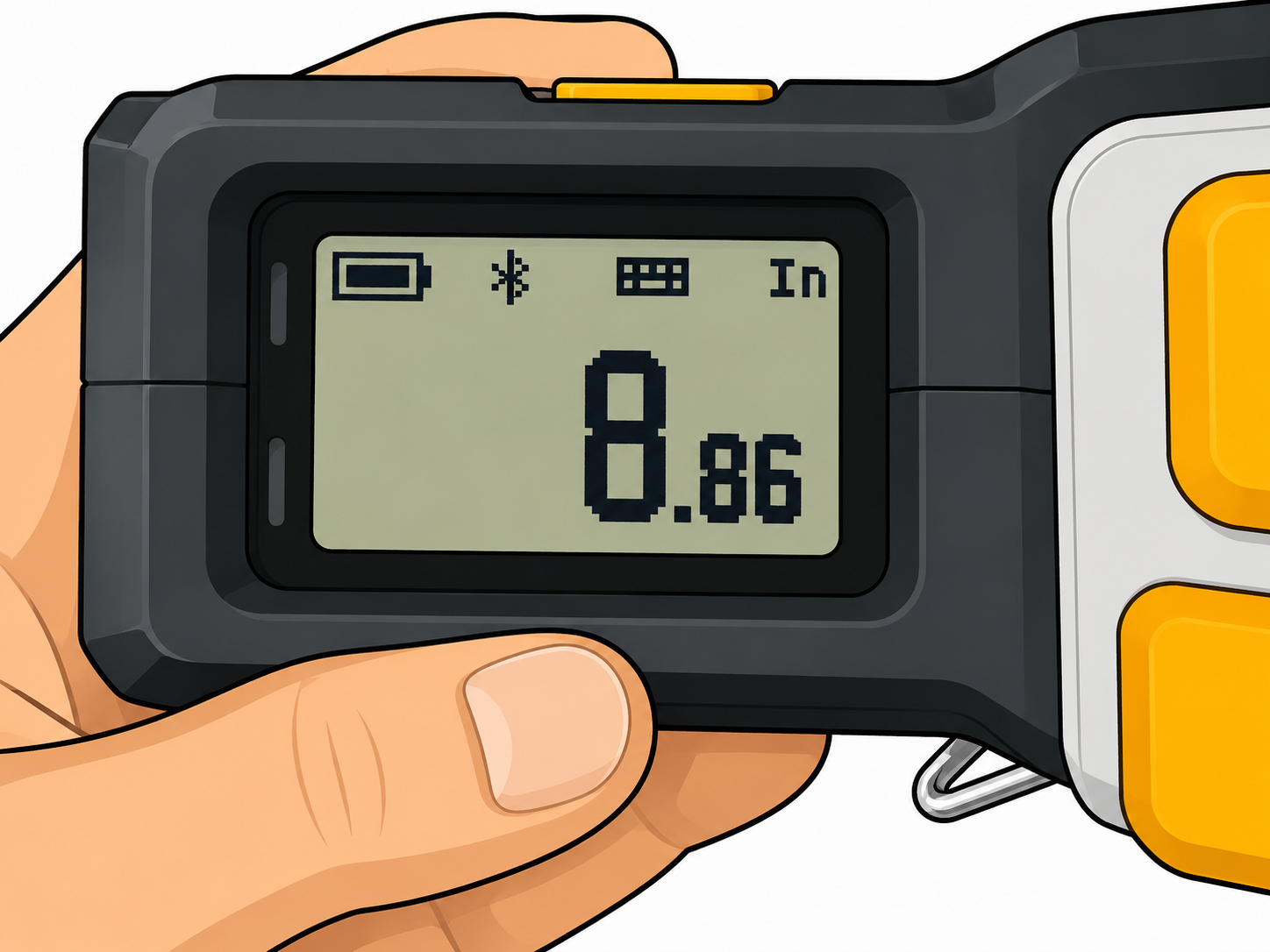
The measurement appears instantly.
The value is displayed in decimal format.
The Bluetooth icon appears on the T1M.
The keyboard icon is visible.
The cursor automatically advances to the next field.
Congratulations! Your REEKON T1M is now fully configured for FSS Window Pro.
Final Checklist Before Your First Job
Before heading to a customer's home, verify the following:
✅ BT Mode = Keyboard
✅ Keyboard Ending = TAB
✅ Units = INCH .XX
✅ Phone or tablet paired to the correct T1M
✅ Test measurement successfully transfers into FSS Window Pro
Taking just a minute to confirm these settings ensures a smooth measuring experience on every project.
Start Measuring Smarter
With the REEKON T1M connected to FSS Window Pro®, you'll spend less time entering measurements and more time serving customers. Automatic Bluetooth data transfer helps improve speed, reduce errors, and create professional measurement reports with confidence.