
Troubleshooting Your Leica DISTO X3: Reset & Firmware Update Guide
If your Leica DISTO X3 is experiencing Bluetooth connectivity problems, measurement syncing issues with FSS Window Pro®, unexpected behavior, or general performance glitches, performing a device reset is often the fastest way to restore normal operation.
This guide walks you through the manual reset procedure directly on the DISTO X3.
When Should You Reset Your Leica DISTO X3?
Consider performing a reset if you experience:
Bluetooth connection failures
Device not pairing with FSS Window Pro
Measurements not transferring correctly
Frozen or unresponsive screen
Incorrect settings after a firmware update
Unexpected device behavior
Important: A reset restores the DISTO to factory settings. You may need to reconfigure your preferred settings and reconnect Bluetooth devices afterward.
Leica DISTO X3 Manual Reset Procedure
Follow these steps exactly as shown below.
Make it stand out
Whatever it is, the way you tell your story online can make all the difference.
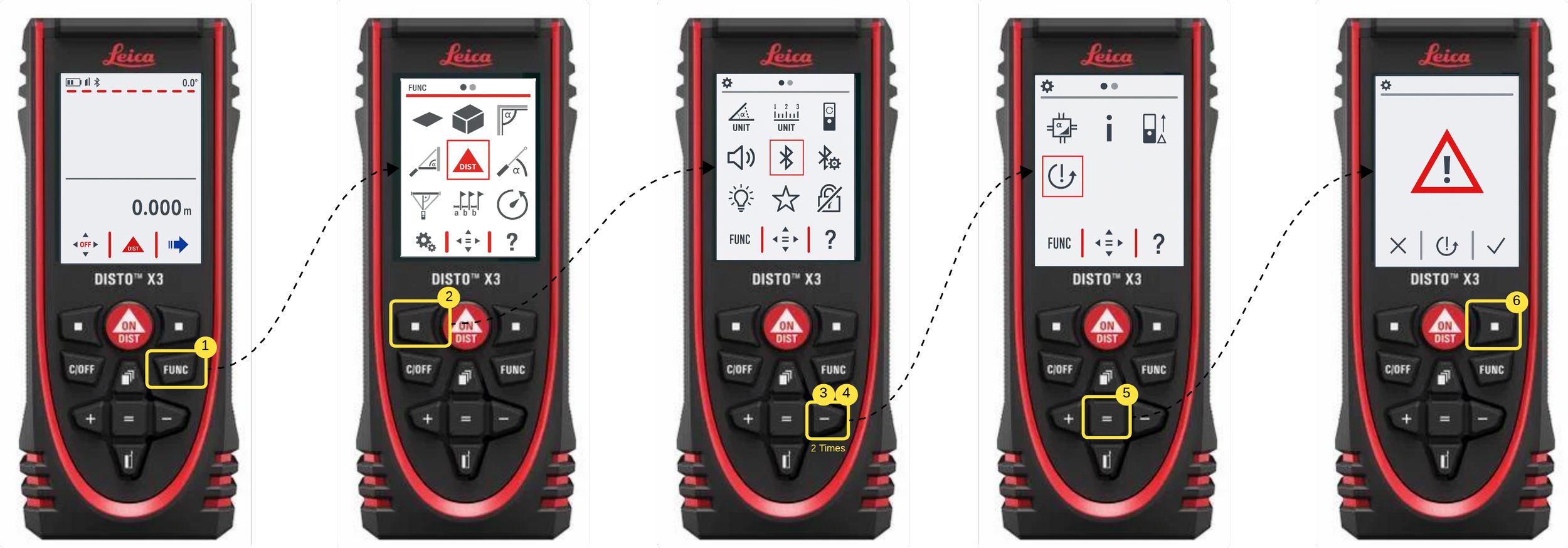
Step 1: From the measurement screen, press FUNC.
Step 2: Select the Settings (Gear) icon.
Step 3: Press the Right Arrow button twice until you see the Reset icon.
Step 4: Select the Reset icon and press the Center button.
Step 5: When the warning screen appears, press the Right Arrow button to confirm.
The DISTO X3 will reset and return to the default measurement screen.
After the Reset Verify Settings
Measurement units
Bluetooth settings
Reference point settings
Display preferences
Device Still Won't Connect?
Try these additional steps:
Turn Bluetooth off and back on.
Remove the DISTO from your phone's paired devices list.
Restart your mobile device.
Pair the DISTO again through FSS Window Pro.
The next recommended step is updating the DISTO firmware to the latest version, as Leica frequently releases updates that improve:
Bluetooth stability
Device performance
Compatibility with mobile applications
Bug fixes and reliability improvements
How to Update Leica DISTO X3 Firmware
Keeping your Leica DISTO X3 firmware up to date ensures you have the latest performance improvements, Bluetooth enhancements, bug fixes, and compatibility updates.
If you're experiencing Bluetooth pairing issues, connection drops, measurement transfer problems, or unusual device behavior, updating the firmware is often the next recommended step after performing a device reset.
Make it stand out
Whatever it is, the way you tell your story online can make all the difference.
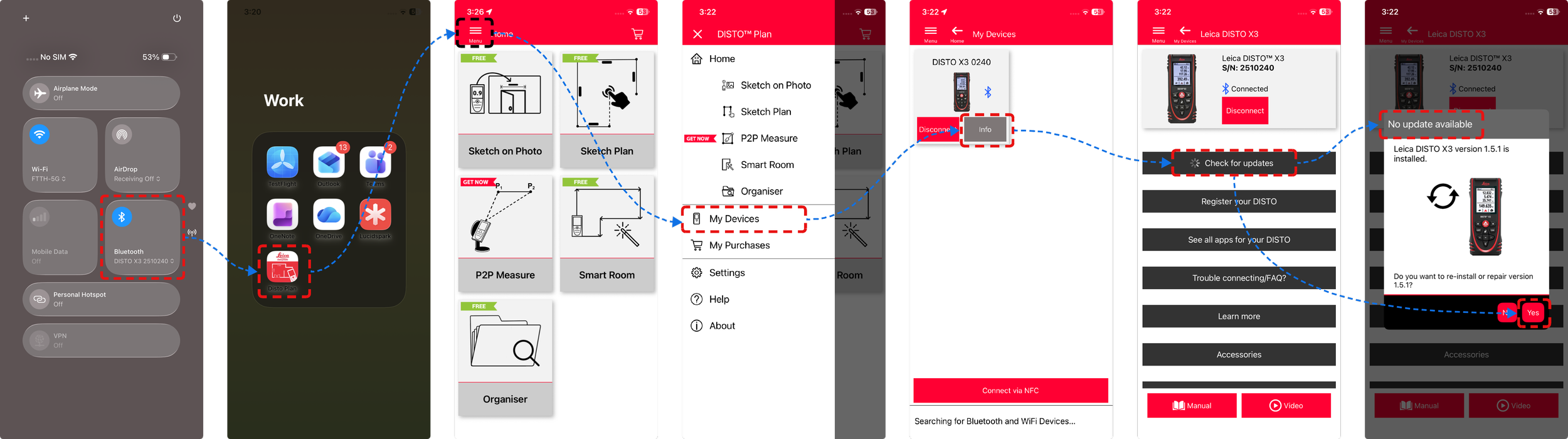
Step 1: Turn on your DISTO X3 and pair it with your phone via Bluetooth.
Step 2: Download and open the Leica DISTO Plan app from the App Store or Google Play Store.
Step 3: Tap the Menu (☰) icon and select My Devices.
Step 4: Select your Leica DISTO X3, then tap Info.
Step 5: Tap Check for Updates.
The app will check whether a newer firmware version is available for your device.
If an update is available, follow the on-screen instructions to install it.
If no update is available, tap Yes when prompted to reinstall/repair the current firmware, as this can often resolve connectivity and performance issues.
Important: Ensure your DISTO battery is above 60% before starting the update or repair process.
To prevent update interruptions:
Keep the DISTO powered on throughout the process.
Keep your mobile device close to the DISTO.
Do not disable Bluetooth.
Do not close the DISTO Plan app until the process is complete.
Need Additional Help?
If you've completed both the reset and firmware update procedures and are still experiencing issues, contact the FSS Window Pro support team at: support@fssapp.com
Include:
DISTO model number and serial number
Firmware version
Mobile device model, OS version
Description of the issue
This information will help our team troubleshoot the problem more quickly.